
What this helps you do
Find a one-to-one SMS conversation, read its message history, and write a reply from the Messages inbox.
Before you begin
- An Admin can read and reply to conversations.
- A Limited Admin needs View permission for Conversations to open the inbox and threads. They also need Create permission for Conversations to send a reply.
- A Team Leader can read conversations only for people who belong to a team they lead. Team Leaders cannot send replies, even though the reply controls may appear.
- Your church needs a default sender phone number before the inline reply box is available.
Replies from this inbox are SMS messages. They send from the church’s default sender phone number and count toward SMS usage.
Steps
-
In the admin navigation, select Messages.
-
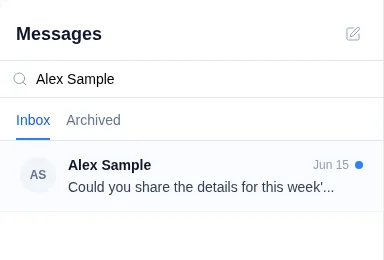
Use the Inbox and Archived tabs to choose which conversations to view.
-
To narrow the list, enter all or part of a person’s name, email address, or phone number in Search replies & people, then press Enter.
-
Look for bold text and a blue dot to identify an unread conversation.
-
Select the conversation. Engage Spot opens the complete SMS history and immediately marks the conversation as read. The bold text and blue unread dot disappear.
-
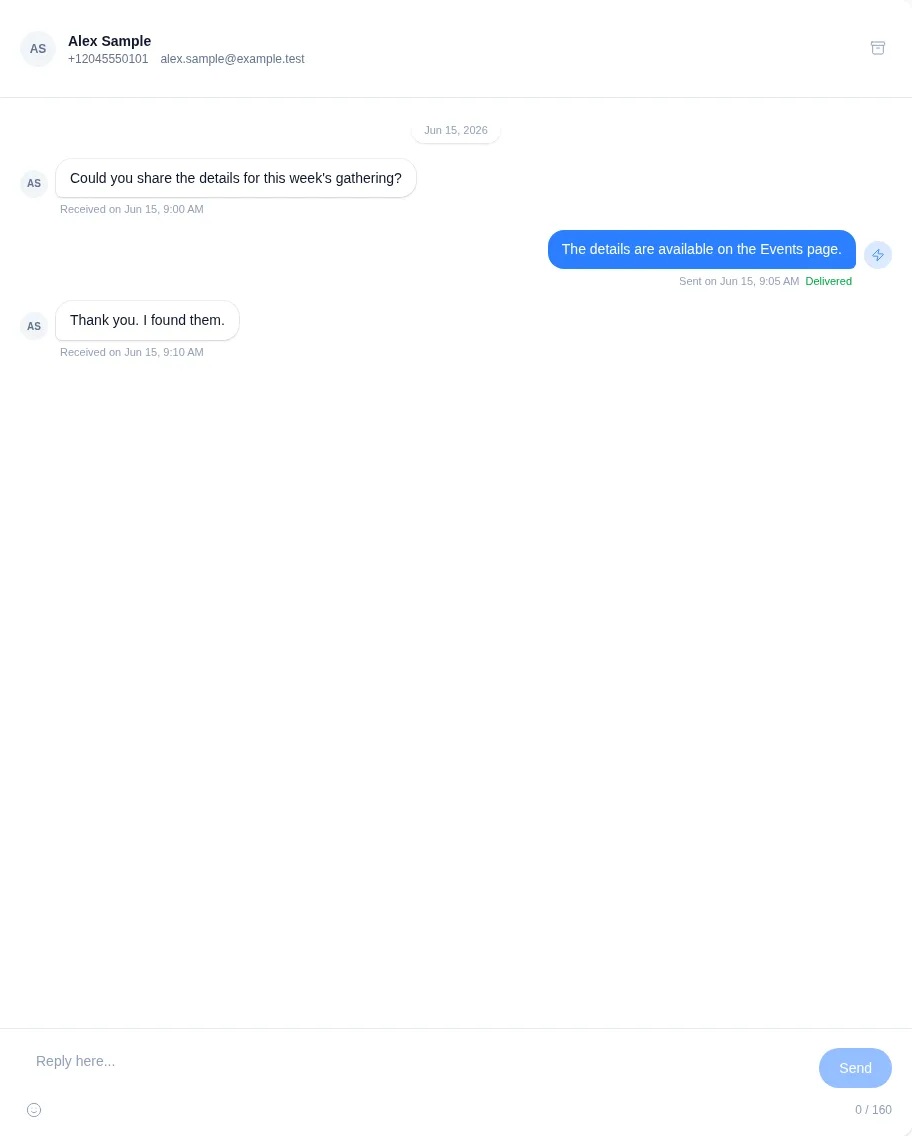
Review the contact details at the top and the message history below. Incoming messages appear on the left, while messages sent by your church appear on the right with their delivery status.
-
If you have permission to reply, enter your message in Reply here…. You can also:
- Select the smile icon to insert an emoji.
- Press Shift+Enter to add a new line.
- Use the counter below the box to check the message length. Longer replies can use more than one 160-character SMS segment.
-
When the reply is ready, select Send. Engage Spot sends it immediately without a review step. Pressing Enter without holding Shift also sends the reply.
What happens next
The reply appears on the right side of the conversation. Its status updates as Engage Spot processes and delivers the SMS.
Opening the conversation clears its unread state. Returning to the inbox does not make it unread again.
On a phone, select the back arrow in the conversation header to return to the conversation list.
Troubleshooting
A search shows “No conversations yet”
That message can mean no conversation matches the current search; it does not necessarily mean the church has no conversation history. Search using the person’s name, email address, or phone number, or clear the search field and press Enter.
The reply box appears, but you cannot send
A Limited Admin needs Create permission for Conversations. Team Leaders cannot send replies. The reply controls may still appear when your role does not allow the action, so ask an Admin to reply or update a Limited Admin’s permissions.
There is no reply box
If the thread says No phone number configured, an Admin needs to set up a sender phone number in Settings before you can reply from the conversation.
Send is unavailable
Enter at least one non-space character. Send remains unavailable while the reply is empty.