
What this helps you do
Keep a person’s profile and current SMS and email permission choices accurate.
Before you begin
You need to be an Admin or a Limited Admin with permission to view and edit People records. Team Leaders can view people on teams they lead, but cannot edit them.
Confirm changes to communication permissions with the person before recording them. Choose Denied when someone withdraws permission; do not use Not given to replace an existing permission choice.
Steps
-
In the admin navigation, select People.
-
Search or filter the directory, then select the person’s name.
-
Select Edit.
-
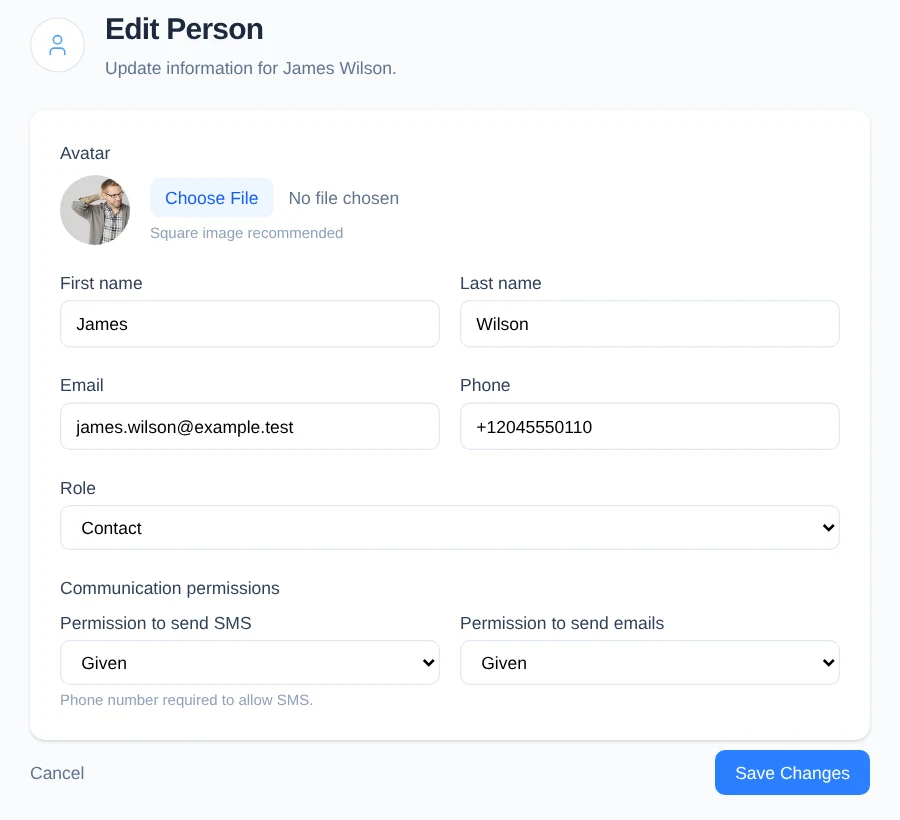
Update any of these profile details:
- To replace the optional profile picture, under Avatar, select Choose File and choose a square image.
- Update First name or Last name.
- Update Email or Phone.
-
If you are an Admin and the person’s access responsibilities changed, choose their new Role. Team Leader, Limited Admin, and Admin require an email address.
-
Under Communication permissions, record the person’s current choices:
- For Permission to send SMS, choose Given when the person permits SMS or Denied when they do not. Given requires a phone number.
- For Permission to send emails, choose Given when the person permits email or Denied when they do not. Given requires an email address.
- Leave Not given selected only when the person has not previously made a permission choice. It does not clear an existing Given or Denied status.
-
If you remove a phone number or email address that previously had Given permission, change that channel to Denied in the same update.
-
Select Save Changes.
What happens next
Engage Spot returns to the person’s profile and shows the updated details. Each communication channel shows its latest effective permission, where that choice came from, and when it was recorded.
Changing a permission from Given to Denied, or from Denied to Given, adds the new choice without removing its previous history.
Troubleshooting
Engage Spot asks you to fix errors
Confirm that:
- First name and Last name have values.
- A Contact has an email address, phone number, or both, unless they are a child in a family that was created without contact details.
- An Admin, Limited Admin, or Team Leader has an email address.
- Given SMS permission has a phone number.
- Given email permission has an email address.
Correct the listed fields and select Save Changes again.
The email address or phone number belongs to another person
Each email address and phone number can belong to only one person in your church. Return to People, search for the contact information, and update the correct record.
Not given did not replace the current permission
Not given represents the absence of a recorded choice and does not erase permission history. Choose Denied to record that the person does not permit communication through that channel.
You cannot edit the person
Your role may not have permission to edit People records. Limited Admins need People edit permission. Team Leaders cannot edit people.