
What this helps you do
Choose whether people can register for an Event, set when registration closes, and configure optional SMS and email confirmations.
Before you begin
For the complete workflow, you need Full Admin access.
A Limited Admin needs Events permissions for the action they are taking. View and Edit let them open an Event and change its registration settings. Closing and reopening registration also depend on separate Events permissions. Team Leaders can view Events but cannot edit registration settings or complete the full close-and-reopen workflow.
Before opening registration, confirm that:
- The Event’s date and time are correct.
- The Event is Published. A Draft Event can have registration enabled, but people cannot register for it.
- The Event is Public or Unlisted if people will register through the church’s public site. A Private Event cannot be opened through a public link.
- Any confirmation wording is ready. SMS and email confirmations are optional.
Steps
Turn on registration and choose when it closes
- In the admin navigation, select Events.
- Open the Event and select Edit.
- Under Registration, select Enable registration.
- To stop accepting registrations at a specific time, choose Registration closes at. Leave it blank to accept registrations until the Event ends.
- Choose whether to send confirmations:
- Select Send SMS confirmation and enter the SMS message.
- Select Send email confirmation and enter the Subject and Body.
- Select Update Event.
The Event overview shows Open when the Event is published, registration is enabled, the close time has not passed, and the Event has not ended. If you set a close time, the overview also shows when registration closes.
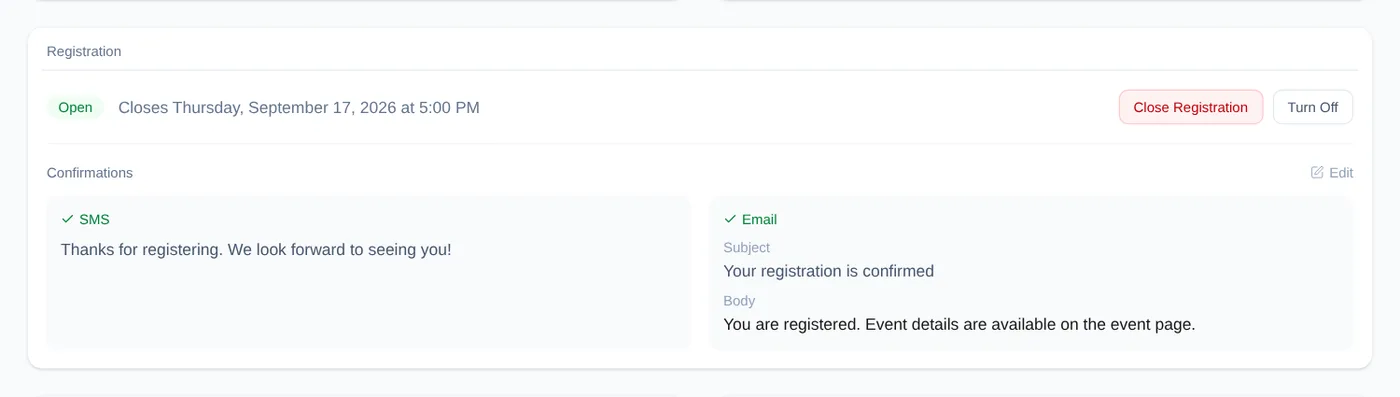
Edit confirmations from the Event overview
- Open the Event.
- In the Registration card, find Confirmations and select Edit.
- Turn the SMS or email confirmation on or off and update its content.
- Select Save.
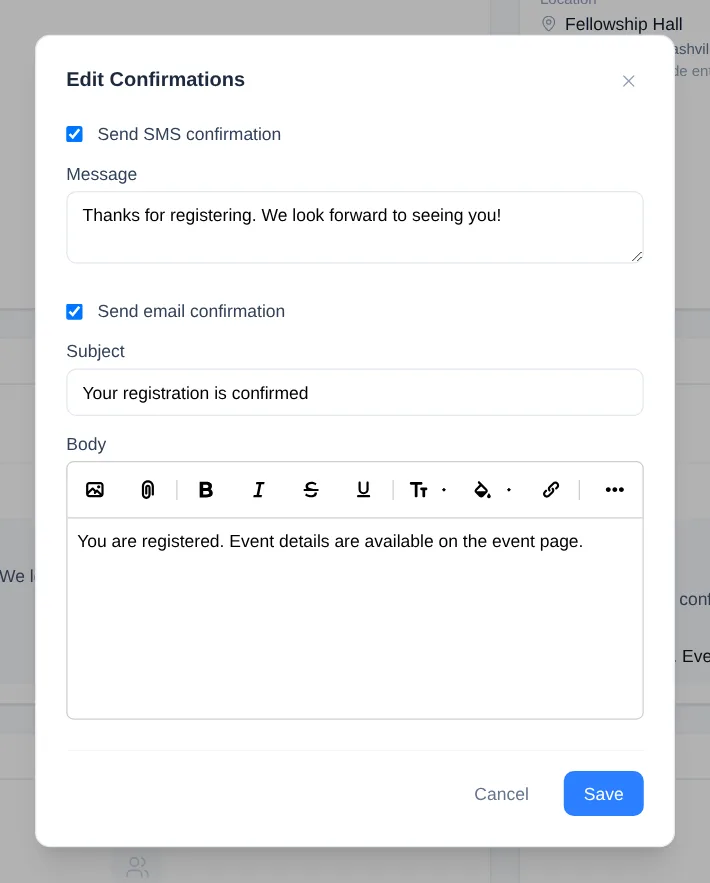
A confirmation is considered for each new registration. It can be sent only when the person has the matching contact method with Given communication permission and the church has a default sender for that channel.
Close or reopen registration
- Open the Event and find the Registration card.
- Select Close Registration, then confirm the prompt. The card changes to Closed, and the public Event page says Registration is closed for this event.
- To accept registrations again, select Reopen. Reopening clears the close time, so registration remains open until the Event ends unless you edit the Event and set a new Registration closes at time.
Closing registration does not remove existing registrants.
Turn registration off
- Open an Event that has no registrants.
- In the Registration card, select Turn Off.
The registration card changes to Registration is not enabled for this event, and the public Event page no longer shows registration controls. Select Turn On to enable it again.
Once an Event has registrants, Turn Off is unavailable. Close registration instead if you need to stop new registrations without removing existing ones.
What happens next
People see registration controls only while the published Event is accepting registrations. A closed Event shows a closed-registration message. An Event with registration turned off, or an Event that has ended, shows no registration controls.
Signed-out registrants start with a phone number. When Engage Spot does not recognize it, they provide a first name and last name and may add an email address. Someone registering without a US or Canadian phone number must provide a first name, last name, and email address, even though the current form labels the email field optional. Signed-in registrants use the details already connected to their account.
Registration has no capacity or Event-full setting. To stop new registrations, close registration manually or set Registration closes at.
Registrants remain available on the Event overview. Configuring registration does not register anyone or send a confirmation by itself.
Troubleshooting
The Event does not show Open
Confirm that the Event is Published, Enable registration is selected, the Event has not ended, and Registration closes at is blank or still in the future.
The public page has no registration controls
Registration may be turned off, the Event may still be a Draft, or the Event may have ended. Open the Event in the admin area and review its Status, date, and Registration card.
If the page says Registration is closed for this event, select Reopen in the admin Event overview or move Registration closes at to a future time.
Turn Off is unavailable
The Event already has at least one registrant. Use Close Registration to stop new registrations while keeping the existing registrants.
A registrant did not receive a confirmation
Confirm that the relevant confirmation is enabled and has content. The person also needs a phone number or email address with Given permission, and the church needs a default sender for that channel.
A registration action is unavailable
Ask a Full Admin to check your Events permissions. Limited Admin permissions can differ by action, and Team Leaders cannot complete the full registration-configuration workflow.