
What this helps you do
See who is registered for an Event, add or remove a person’s registration, and export the current registrant list.
Before you begin
The Event must have registration turned on.
- An Admin can complete every step.
- A Limited Admin needs View permission for People and Events. They also need Create permission for Events to add registrations and Delete permission for Events to remove them.
- A Team Leader can view an Event’s registrants and export the list, but cannot add or remove registrations. They can open a registrant’s People profile only when that person is within a team they lead.
A registration records Event membership. It does not mean the person can receive every message. Sending an SMS or email to an Event audience also requires the matching contact detail and Given communication permission.
Steps
View the current registrants
-
In the admin navigation, select Events.
-
Choose the Event.
-
Find the Registrants card. Each row shows one registered person and how long ago they registered. Select a name to open that person’s profile.
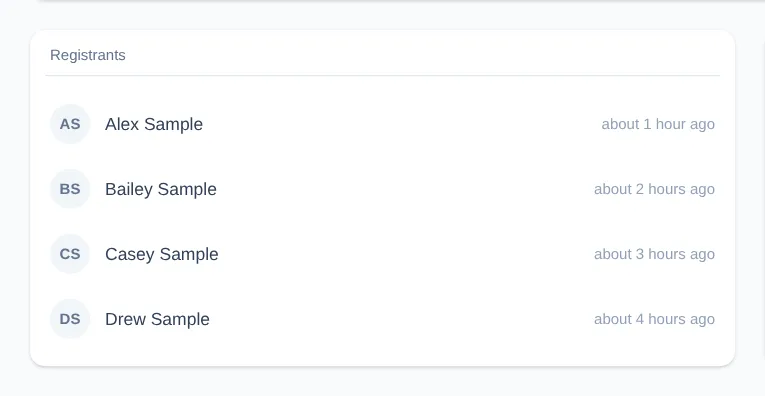
The newest registration appears first. The card shows all current registrations and does not have a total, status, search, filter, or pagination control. If nobody is registered, it shows No registrants yet.
Add a registration
- In the admin navigation, select People.
- Find and open the person who should be registered.
- On their profile, find Event Registrations and select the plus icon.
- In Register for event, search for the Event and select it.
Engage Spot returns to the person’s profile and shows Registered for Event name. An Event that the person has already joined is not offered, so the same person cannot be registered twice.
Remove a registration
- Open the person’s profile and find Event Registrations.
- On a computer, point to the Event row and select the remove icon on the right.
- At Unregister from Event name?, confirm the removal.
Engage Spot removes the Event from the person’s profile and removes the person from the Event’s Registrants card. This is the admin equivalent of a member selecting Cancel in My Account.
Export the registrants
-
Return to the Event.
-
Open More event actions in the top-right corner.
-
Select Export registrants.
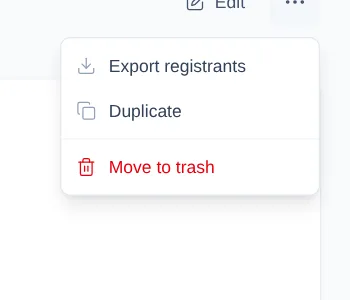
Engage Spot downloads a CSV file named from the Event and current date, such as community-supper-registrants-2026-07-31.csv. It contains every current registration, newest first, with these columns:
- First name
- Last name
- Phone
- Registered at
The export is unavailable when the Event has no registrants. It is not filtered by communication permission or whether a contact method is present, so the exported row count may be higher than the number reachable by SMS or email.
What happens next
Adding or removing a registration updates both the Event and the person’s profile. Removing a registration does not delete the People record.
Closing registration stops new public registrations but keeps existing registrants and their export. Select Reopen on the Event when registration should accept people again.
Troubleshooting
A person or Event is not available when adding a registration
Confirm that your Limited Admin role has View permission for People and Events and Create permission for Events. The picker includes published, upcoming Events only and excludes Events the person has already joined.
You cannot remove a registration
A Limited Admin needs Delete permission for Events. Team Leaders cannot remove registrations.
On the current phone layout, the remove icon is hidden until an Event row can be hovered. Use the desktop admin area to remove the registration.
A Team Leader cannot open a registrant’s profile
Team Leaders can see the Event’s registrant list, but their People access is limited to members of teams they lead. Ask an Admin to open or update a person outside that scope.
Export registrants is missing
The action appears only after at least one person is registered. Add a registration, then reopen More event actions.
The export includes someone who cannot receive a message
Event registration and communication permission are separate. Review the person’s phone number, email address, and SMS or email permission on their People profile. Removing them from the Event is not necessary unless their registration itself should be cancelled.