
What this helps you do
Schedule a Broadcast for a future date and time, or cancel a scheduled Broadcast before delivery begins.
Before you begin
- A full Admin can schedule and cancel Broadcasts.
- A Limited Admin needs View and Create permission for Broadcasts.
- A Team Leader can schedule and cancel Broadcasts only for Teams they lead.
- Prepare the Broadcast’s type, audience, message, and sender before choosing when it should go out.
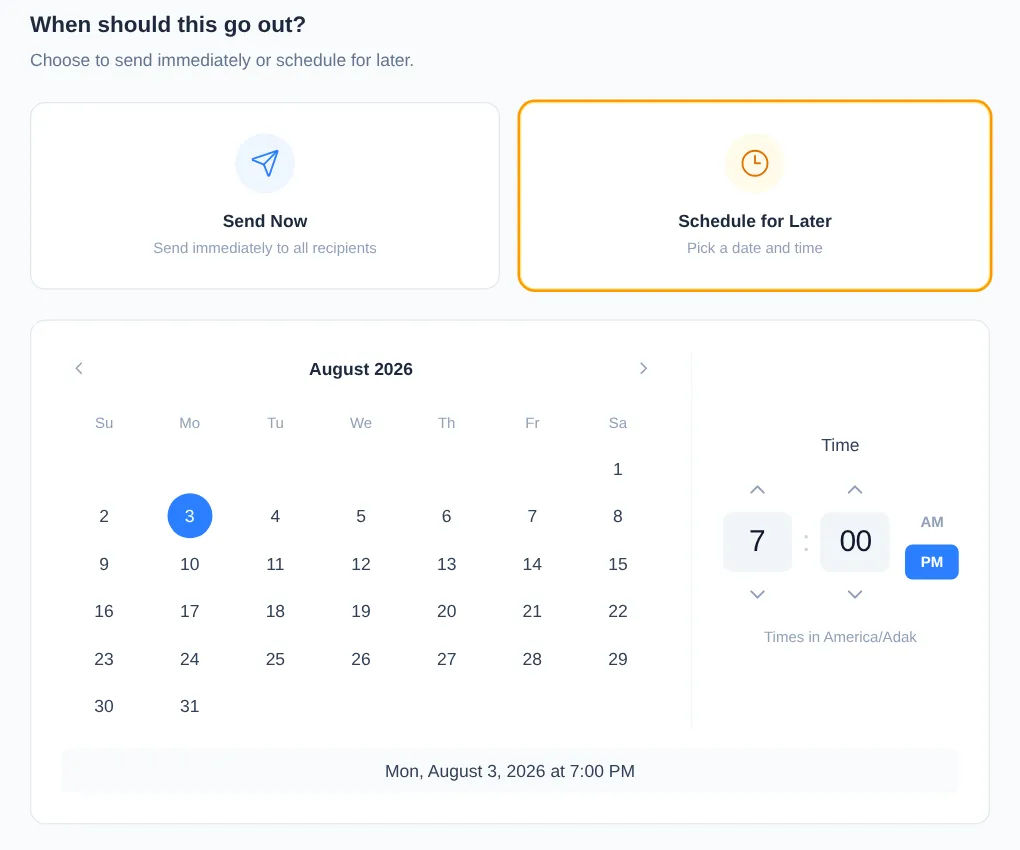
Engage Spot interprets the selected date and time in your church’s timezone, not the timezone of the phone or computer you are using. The picker shows the church timezone below the time controls. A full Admin can review the timezone under Church Settings.
Schedule a broadcast
-
In the Broadcast wizard, continue to When.
-
Select Schedule for Later.
-
Choose a date, enter the hour and minute, then select AM or PM. Dates before today are unavailable. Check the summary below the picker and the displayed church timezone before continuing.
-
Select Review.
-
On the Review screen, check the audience, message, sender, and When value. Selecting Review saves a draft; it does not schedule delivery.
-
Select Schedule Broadcast. Engage Spot opens a final confirmation showing the audience, message, and scheduled time.
-
Check the details once more, then select Schedule Broadcast in the confirmation.
Cancel a scheduled broadcast
-
Open Broadcasts, then select the Broadcast from Scheduled.
-
Confirm that the Broadcast shows the Scheduled status and the intended date and time.

-
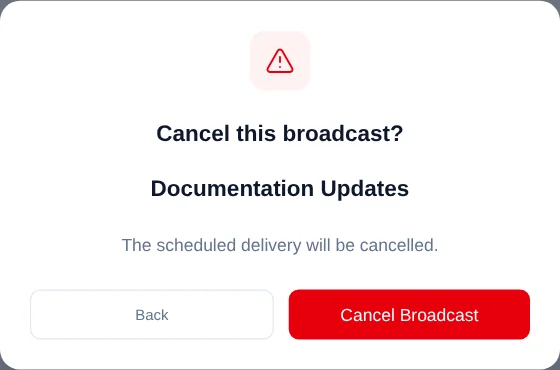
Select Cancel. This action is available only while the Broadcast remains Scheduled.
-
In the confirmation, select Cancel Broadcast.
What happens next
After scheduling, the Broadcast appears under Scheduled on the Broadcasts page. Its detail screen shows the Scheduled status, planned date and time, audience, message, and recipients.
After cancellation, the detail screen changes to Cancelled. The Send Now and Cancel actions disappear, and the Broadcast no longer appears under Scheduled. Cancelling does not send the Broadcast.
Troubleshooting
Review is unavailable
Select Schedule for Later, then provide a complete date, hour, minute, and AM or PM value. Engage Spot keeps Review unavailable until the selection is complete. Hours and minutes outside the supported ranges are adjusted by the time controls.
The Broadcast does not become Scheduled
The scheduled time must still be in the future when you confirm it. If the selected time has passed, the Broadcast remains a draft. Return to When, choose a later time in the displayed church timezone, and review it again.
The time is not what you expected
The time picker uses the church timezone shown below the controls. Ask a full Admin to confirm the timezone under Church Settings before scheduling.
Cancel is unavailable
Cancellation is available only while the status is Scheduled. Once delivery begins, the status and available actions change and the Broadcast can no longer be cancelled.
A Team Leader sees only Broadcasts for Teams they lead. A Limited Admin needs both View and Create permission for Broadcasts.