
What this helps you do
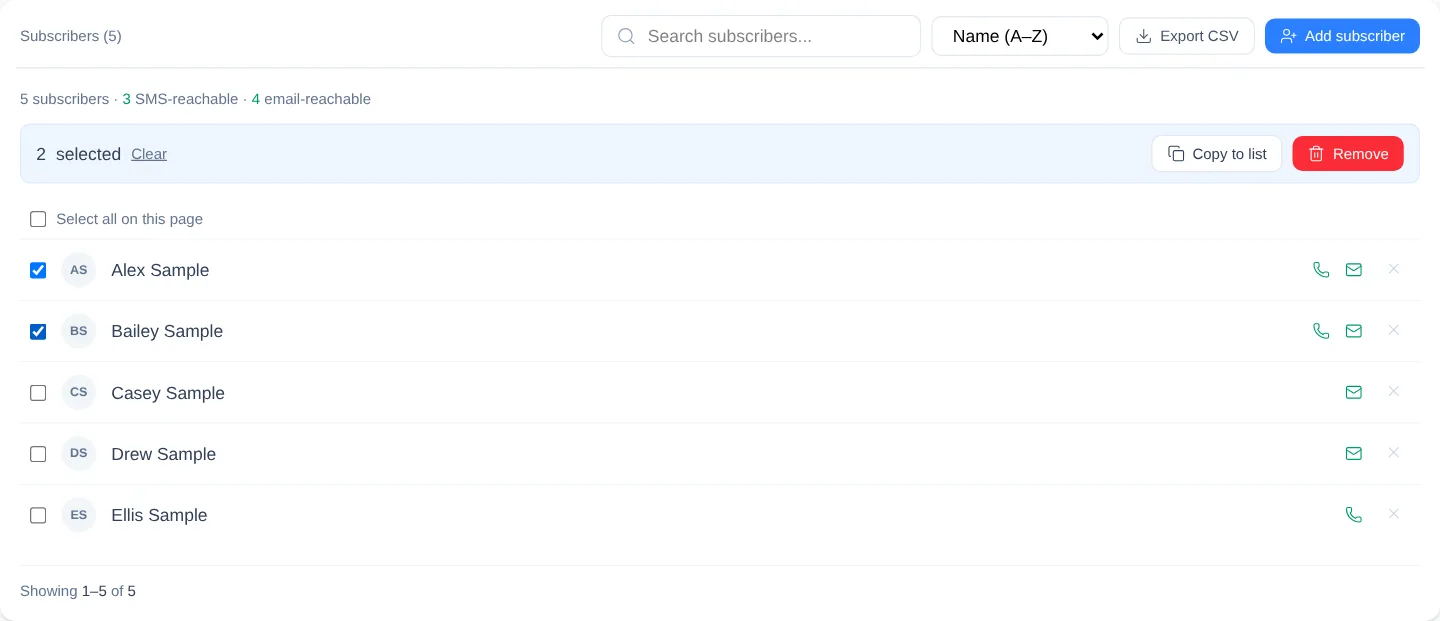
Keep a List’s Subscribers up to date. You can add or remove people, copy selected Subscribers to another List, find and sort membership records, and download them as a CSV file.
Before you begin
You need to be an Admin or a Limited Admin with the required Lists permissions:
- View lets you open Lists, search and sort Subscribers, and export CSV files.
- Create lets you add Subscribers and copy them to another List.
- Delete lets you remove Subscribers.
Team Leaders cannot access Lists.
Use a desktop-sized browser window for this task. On a narrow mobile screen, some subscriber toolbar controls—including sorting, Export CSV, and Add subscriber—may be off-screen and inaccessible.
Steps
Find and sort Subscribers
- In the admin navigation, select Lists, then select the List you want to manage.
- Find the Subscribers section.
- To search, enter all or part of a Subscriber’s name, email address, or phone number in Search subscribers…, then press Enter.
- To change the order, open Sort subscribers and choose Recently joined, Earliest joined, Name (A–Z), or Name (Z–A).
- If the results span multiple pages, use Previous and Next below the Subscribers. Each page shows up to 25 results.
Add a Subscriber
- Select Add subscriber.
- In Search by name, phone, or email…, find and select a person who is not already on the List.
- Select Add to list.
- Confirm the person’s name appears in the Subscribers section. Subscription confirmation messages are not sent when an admin adds someone manually.
Copy Subscribers to another List
-
Select the checkbox beside each Subscriber you want to copy. To select every result visible on the current page, choose Select all on this page.
-
In the bulk-action bar, select Copy to list.
-
Choose the Destination list, then select Copy subscribers.
-
Open the destination List and confirm the selected people appear there. A person already on the destination List is not added a second time.
Remove Subscribers
To remove one person:
- Select Remove from list (the X) beside the person’s name.
- Confirm the removal.
To remove several people:
- Select their checkboxes, or choose Select all on this page.
- Select Remove in the bulk-action bar.
- Confirm the removal.
Removing someone from a List does not delete their People record.
Export Subscribers
- Apply a search and sort order if needed.
- Select Export CSV.
Engage Spot downloads a file named <list-name>-subscribers-YYYY-MM-DD.csv. The export includes every Subscriber matching the current search, across all result pages—not only the page currently visible—and follows the selected sort order.
The file contains these columns: First name, Last name, Email, Phone, SMS permission, Email permission, and Joined at.
What happens next
The List uses its updated membership anywhere that List is selected as an audience. Copying Subscribers adds them to the destination without removing them from the original List.
The summary above the results shows how many matching Subscribers are SMS-reachable and email-reachable. A Subscriber is SMS-reachable when they have a phone number and Given SMS permission. They are email-reachable when they have an email address and Given email permission. One person can be reachable through both channels.
Troubleshooting
The Subscriber count changed after a search
While a search is active, Subscribers, SMS-reachable, and email-reachable show counts for the matching results, not the List’s complete membership. Clear the search to return to the full counts.
A person does not appear in Add subscriber search
People already on the List are excluded from the search results. Clear or shorten the search, or check the Subscribers section to see whether the person is already a member.
Select all did not include every page
Select all on this page selects only the current page, up to 25 Subscribers. Complete the bulk action on each page as needed. CSV export is different: it includes all pages that match the current search.
A subscriber is not counted as reachable
Check the person’s contact details and communication permissions. They need both a contact method for the channel and Given permission. Being on a List does not override missing contact information or a permission of Denied or Not given.
A subscriber action opens a Not Found page
A Limited Admin may see a control even when they do not have permission to use it. Ask an Admin to grant the relevant Lists permission: Create for adding or copying, or Delete for removing.
Subscriber controls are missing on mobile
Use a desktop-sized browser window. The sorting, export, and add controls can be inaccessible on narrow mobile screens.