
What this helps you do
Create a reusable List for Subscribers and publish it as a Topic that people can choose on your church’s subscription pages.
A List is different from the one-time audience used for a single Broadcast. You can keep using a List, add or remove Subscribers, and send future Broadcasts to it.
Before you begin
You need either:
- Full Admin access, or
- Limited Admin access with permission to view, create, and update Lists.
Team Leaders cannot access Lists.
Decide how people should find the Topic:
- Public — appears with the other Topics on your church’s Subscribe page and has its own public page.
- Unlisted — does not appear on the Subscribe page, but anyone with its direct link can open it.
- Private — has no public Topic page. Use this for Lists managed only by admins.
Only an Active, Public List can appear on the church landing page when pinned. An Archived List is not available publicly, regardless of its visibility.
Steps
-
In Engage Spot, select Lists.
-
Select Add List.
-
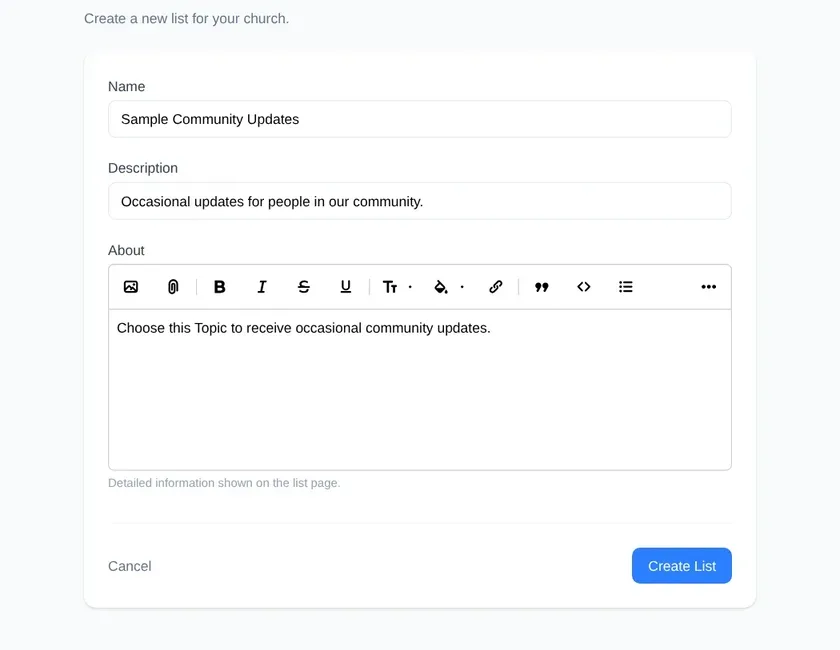
Enter a Name. This is the List name admins see and the Topic name subscribers see.
-
Optionally enter a Description and About information. The description appears in Topic listings; the About content appears on the Topic page.
-
Select Create List. Engage Spot opens the new List’s overview. A new List starts Active and Private.
-
Select Edit.
-
Leave Status set to Active, then choose a Visibility:
- Choose Public to list the Topic on the Subscribe page.
- Choose Unlisted to make the Topic available only through its direct link.
- Choose Private to keep the List admin-only.
-
To feature a Public Topic on your church landing page, select Pin to landing page. Pinning does not make a Private, Unlisted, or Archived List public.
-
Optional: under Subscription Confirmations, select Send SMS confirmation or Send email confirmation, then review or customize the message. These confirmations are for people who subscribe through the public Topic workflow.
-
Select Update List.
What happens next
The List overview shows its Status, Visibility, pinned state, confirmation settings, and Subscriber count.
For an Active Public or Unlisted List, View page opens the subscriber-facing Topic page. A Private or Archived List does not show this action.
You can now add Subscribers or use the reusable List as a future Broadcast audience. Adding Subscribers and sending a Broadcast are separate tasks.
Troubleshooting
The List is not created
Name is required. If it is blank, Engage Spot shows Name can’t be blank. Enter a name and select Create List again.
A description can contain up to 255 characters.
The Topic does not appear on the Subscribe page
Open the List, select Edit, and confirm that Status is Active and Visibility is Public. Unlisted Topics work through their direct links but do not appear in the Topic listing.
The Topic does not appear on the landing page
Confirm that the List is Active, Public, and has Pin to landing page selected. Pinning an Unlisted, Private, or Archived List does not display it there.
You cannot see Lists or Add List
Ask a Full Admin to check your Limited Admin List permissions. Lists are unavailable to Team Leaders.