
What this helps you do
Group related People records into a family, identify adults and children, and keep the household accurate when someone joins, leaves, or moves to another family.
Before you begin
You need to be an Admin or a Limited Admin with the People permissions required for each action:
- View permissions to open People and families.
- Create permission to create a family or add a person or child.
- Edit permission to rename a family, change a family role, or move someone.
- Delete permission to remove someone or dissolve a family.
Team Leaders cannot view or manage families.
A family starts with an existing person who has an email address or phone number. That person becomes its first adult. A person can belong to only one family.
Steps
Create a family
- In the admin navigation, select People.
- Find and select the person who will be the family’s first adult.
- In the Family section, select Add to family.
- Under Create a new family, enter the Family name.
- Select Create family.
Engage Spot returns to the person’s profile and shows the new family and their Adult role.
Find and open a family
- In People, select the Families tab.
- Search by a family or family member’s name if needed.
- Select the family.
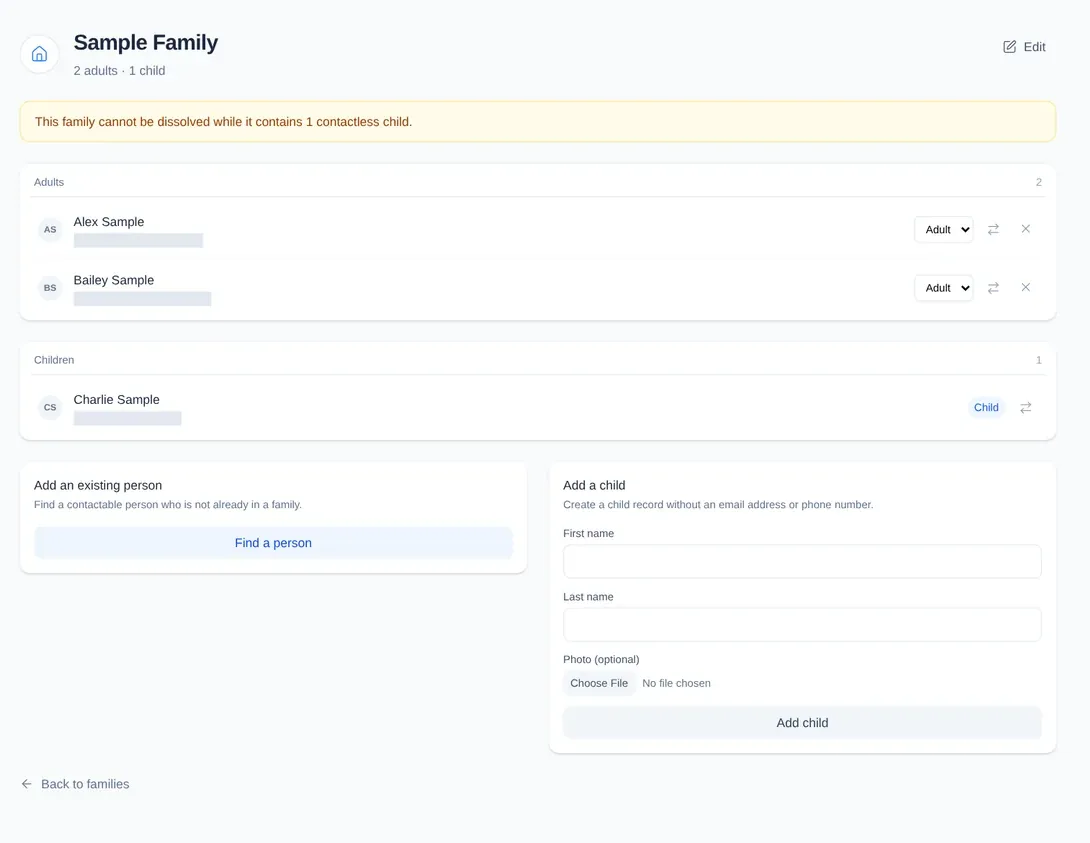
The family profile separates members into Adults and Children.
Add an existing person
- On the family profile, under Add an existing person, select Find a person.
- Search by name, email address, or phone number.
- Select a person who is not already in a family.
- Under Family role, choose Adult or Child.
- Select Link person.
Add a child without contact information
- Under Add a child, enter the child’s First name and Last name.
- To add an optional picture, under Photo (optional) select Choose File and choose an image.
- Select Add child.
This creates a People record with no email address or phone number and links it to the family as a child. A contactless child must remain a child in a family.
Change a family role
- Beside a person with contact information, open the role menu.
- Choose Adult or Child.
The family profile updates immediately. The only adult cannot be changed to a child.
Move someone to another family
- Beside the person, select the move control.
- Select the destination family.
- In the confirmation, confirm the move.
Engage Spot opens the destination family. The person keeps their adult or child role. The only adult cannot be moved because every family must retain an adult.
Use this move action for a contactless child who needs to join another family. A contactless child cannot be removed and left without a family.
Remove someone from a family
- Beside a person with contact information, select Remove from family.
- In the confirmation, confirm the removal.
The person’s People record remains in the directory. The only adult and a contactless child cannot be removed.
Rename or dissolve a family
- To rename the family, select Edit, update Name, and select Save changes.
- To unlink every member and remove the family, select Dissolve, then confirm.
Dissolve is unavailable when the family contains a contactless child. Move that child directly to another family before dissolving this one.
What happens next
Family names and adult or child roles appear on family and person profiles. Searching the Families tab finds matches by family name or member name.
Moving, removing, or dissolving a family does not delete its members’ People records. A contactless child remains protected from being left without a family.
Troubleshooting
You cannot find a person to add
Only people with an email address or phone number who are not already in a family appear in the search. If the person already belongs to a family, open that family and move them instead.
You cannot change, move, or remove an adult
Every family must retain at least one adult. Add or change another member to Adult, then try again.
You cannot remove a child or dissolve the family
A child without an email address or phone number cannot exist outside a family. Move the child directly to another family. After no contactless children remain, you can dissolve the family.
A family action is unavailable or returns a missing page
Your Limited Admin account may not have the People permission required for that action. Ask an Admin to grant the appropriate People View, Create, Edit, or Delete permission, or ask them to complete the change.
Engage Spot says the name cannot be blank
Enter a value in Name, then select Save changes again.