
What this helps you do
Prepare an SMS or email Broadcast for a List, Team, Event, Form audience, or selected people. You will choose the audience, write and personalize the message, review every detail, and confirm the final send.
Before you begin
- A full Admin can prepare and send Broadcasts.
- A Limited Admin needs View and Create permission for Broadcasts. Edit permission lets them change a saved draft, and Delete permission lets them discard one.
- A Team Leader can prepare Broadcasts only for active Teams they lead. Lists, Events, Forms, Custom audiences, and other Teams are unavailable to them.
- Your church needs an available sender phone number for SMS or sender email address for email.
- People receive the Broadcast only when they have a phone number or email address for the chosen type and their latest communication permission for that type is Given.
A reusable List stays connected to its Subscribers. The audience is checked again when the Broadcast sends, so membership changes made before then affect who is included. A Custom audience is a one-time selection for that Broadcast; it does not create or update a reusable List.
Steps
-
In the admin navigation, select Broadcasts.
-
Select New Broadcast.
-
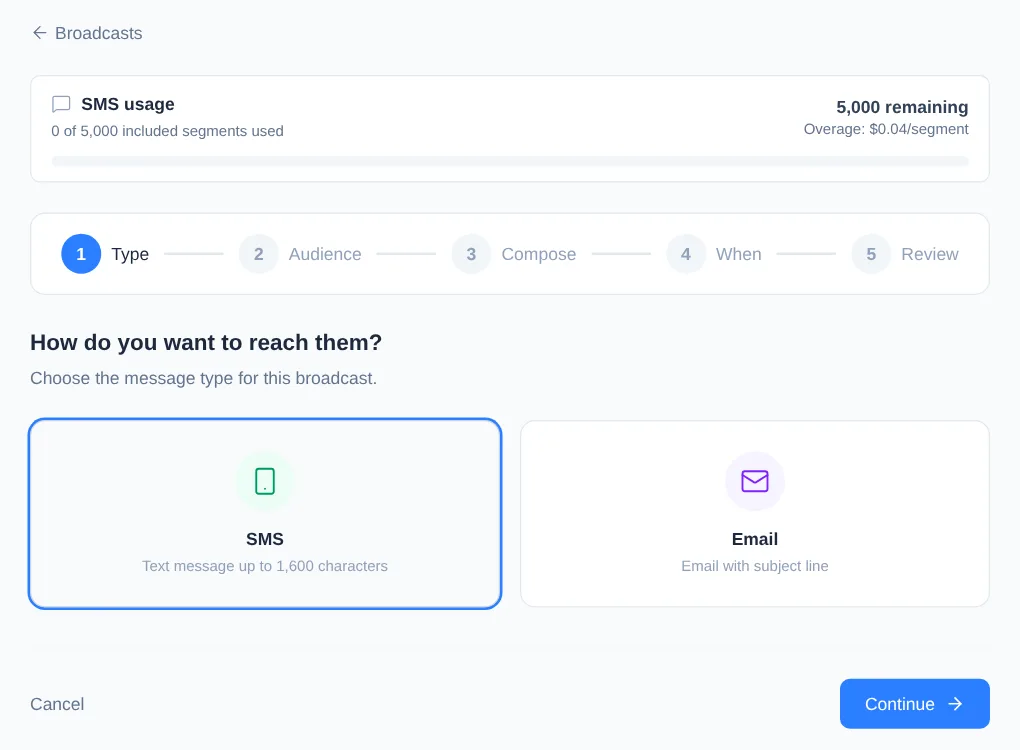
Under How do you want to reach them?, choose:
- SMS for a text message of up to 1,600 characters.
- Email for a message with a subject line and formatting controls.
-
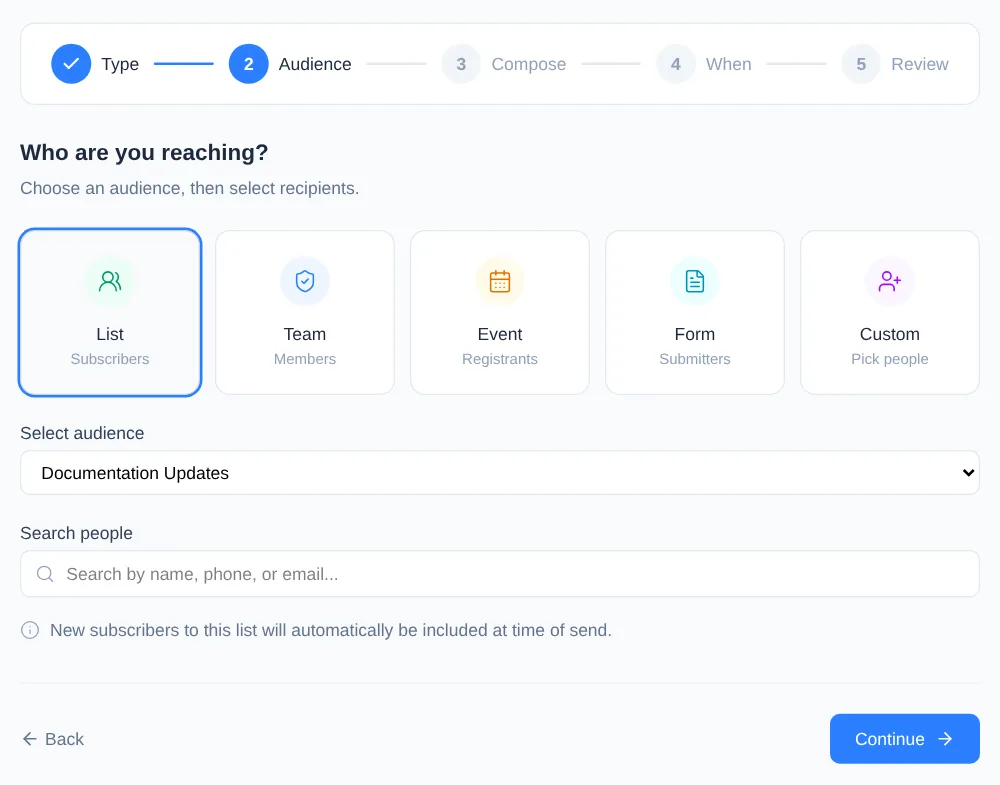
Select Continue. Choose the audience type, then choose the audience:
- List — Subscribers on a reusable List.
- Team — members of a Team.
- Event — registrants for an upcoming or past Event.
- Form — people who have submitted the Form. Engage Spot makes a one-time snapshot, so later submissions are not added.
- Custom — people you find by name, phone number, or email address and select individually.
Lists, Teams, and Events remain live audiences unless you remove or add an individual on this step. Changing the displayed recipients converts the selection to a one-time Custom audience, so later changes to the original audience do not affect it.
-
Check the Recipients list, then select Continue. This list shows audience members, not the number guaranteed to receive the message. Engage Spot checks contact details and communication permissions when it sends.
-
Under Compose your message:
- For SMS, enter the Message.
- For email, enter the Subject and Message. Use the editor controls to format the email when needed.
- Select First name, Last name, or Full name under Personalize to add the matching placeholder to the end of the message. Engage Spot replaces it for each recipient when sending.
- Under From, choose an available sender for the selected message type.
-
Select Continue.
-
Under When should this go out?, choose Send Now, then select Review. Engage Spot validates the message and saves it as a draft before opening Review. Choosing Schedule for Later is a separate scheduling workflow.
-
On Review, confirm the audience, subject when applicable, timing, sender, message, and displayed recipients. Select Edit if anything needs to change, or Delete to discard the draft.
-
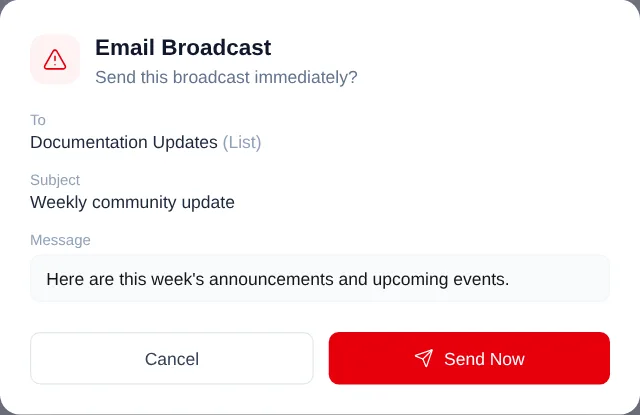
To send immediately, select Send Now. In the confirmation dialog, check the audience, subject, and message one last time.
-
Select Send Now in the confirmation dialog to confirm. This final action sends the Broadcast; select Cancel if you are not ready.
What happens next
After the final confirmation, Engage Spot begins sending to reachable people in the audience. The Broadcast moves out of Drafts, and its details page reports delivery results as they become available.
The displayed recipient total can be higher than the delivered total. For SMS, a person needs a phone number and Given SMS permission. For email, they need an email address and Given email permission. Duplicate people in an audience are counted once.
Troubleshooting
Review returns you to the Type step
Read the error summary above the wizard, correct the message, and work through the steps again. Message is required for SMS and email, and Subject is also required for email. Validation happens when you select Review, not while moving between the earlier steps.
“Sender address must exist” appears
Return to Compose and choose a sender under From. If no sender is available for the selected type, ask an Admin to configure and activate a sender phone number or sender email address.
Some displayed recipients may not receive the Broadcast
The Review total includes all members of the selected audience. It does not show how many are reachable. Check that each intended recipient has the required phone number or email address and that their latest permission for that channel is Given.
Your account is suspended
Sending is blocked while the church account is suspended. A full Admin must update the church’s payment method before sending can resume. The draft remains available to review.
A Team Leader cannot find an audience
Team Leaders see only active Teams they lead. Ask an Admin to confirm the Team is active and that the person is a Leader of that Team.